
Every application (e.g. Microsoft Word, Microsoft Excel, etc.) has a default font.
For Microsoft Excel (versions 2007 and beyond), the default font for its worksheets is Calibri with a font size of 11.
For Excel on a Mac, the default font is Calibri (Body) with a font size of 12.

Now, it’s only the default font.
You can still change it according to your preferences.
Want it to be Arial? You can do that.
Do you prefer blue over black?
Excel allows you to change the font color.
Do you need a larger font size?
Well, Excel allows you to change the font size too!
That said, it can be annoying and time-consuming to change the font all the time.
What if you have a favorite font?
Or your company wants all documents to have a particular font style, color, and size.
Do you have to change the font every time you work on a new Excel book or sheet?
The answer to that is… no! You don’t have to do it every time.
You can only do it one time and you’ll be set (until the next time you want or have to change the font again).
And you can do this by changing the default font in Excel.
In this article, we will learn how to do just that.
Why Change the Default Font?
There could be any reason why you would want to change the default font in Excel.
It could be as simple and inconsequential as you getting bored of the same old Calibri 11 font.
Or it could be that the company you’re working for is using its own fonts for uniformity and branding strategy.
Maybe you just want your Excel sheets to be unique and personalized, and setting the default according to your preferences is one way to do it.
Or for accessibility purposes, you may have to set a bigger font size for some of your clients (although if not all of your clients, you may want to create a template instead).
Whatever the reason for changing the default font in Excel, the process for doing so is still the same.
Fortunately, it’s really not that complicated.
The best part is you only need to do it once and you're set (until you want or have to change the default font again).
The easier way is to use the Excel options, you can also change the default font by creating an Excel template.
How to Set the Default Font in Excel Using the Options Menu
Of the two methods of changing the default font in Excel, using the options menu is the easier one.
It requires less effort than the other one, which is why it’s probably the preferred method when setting the default font in Excel.
The steps will vary depending on the version of Excel you’re using (2010 and above, 2007, Excel on Mac) but the end result should still be the same.
But don’t worry. I will list the steps on how to use it in these different versions of Excel.
How to Set the Default Font in Newer Versions of Excel (version 2010 and above)
Most Windows PC users are probably using the latest version of Microsoft Office.
Of course, that means that they’re probably using the latest version of Excel.
Fortunately, the most recent versions of Excel have a similar interface for the File menu.
If you’re using the latest or more recent version of Excel (version 2010 and above), here are the steps you need to take to set the default font:
- Open the File menu. You do this by clicking on the File tab.

- Navigate the left sidebar. You want to click “Options” which you should find at the bottom of the left sidebar. This opens Excel options.

- Under Excel options, select the “General” category. This will lead us to the general excel options such as user interface, privacy settings, etc. What we want is to navigate to the “When creating new workbooks” section. This lets us set the default font style and size.

- To change the font style, use the drop-down menu after “Use this as the default font” and choose the font style that you want. For illustration, we will be changing the default font style to Arial.

- To change the font size, use the drag-down menu after “Font size” and choose the desired size. For illustration, we will be using font size 12.

- After you set the font style and size to your liking, all you have to do is click OK to apply the changes. You will have to restart Excel to apply the changes. Now, every time you open a new Excel sheet, the default font will be the font that you set.

- [Bonus] In the same section, you can also set the default view for new Excel sheets as well as how many sheets a new Excel workbook will have.
That’s it for setting the default font using the File Menu for Excel versions 2010 and above.
How to Set the Default Font in Excel Version 2007
While most Windows PC users are probably using the latest version of Microsoft Excel, some may still be using the earlier versions such as version 2007.
This wouldn’t be an issue if the interface is similar to the recent versions of Excel.
Alas, they are not similar. So the steps above don’t apply to users of Microsoft Excel version 2007.
If you’re one of the users of Microsoft Excel version 2007, here are the steps you have to follow to change the default font:
- Click the Office button. You can find it in the upper left corner of the workbook. This will open a menu that is similar to the “File” menu of the recent Excel versions.

- In this menu, you want to access Excel options. You can do this by clicking on the “Excel Options” button on the lower right part of the menu. This will open the Excel Options dialog box.

- In the Excel Options dialog box, select the “Popular” category. Navigate to the “When creating new workbooks” section. Here we can set the default font style as well as font size. To set your font style, use the drag-down menu after “Use this font”. To set font size, use the drag-down menu after “Font size”. [Bonus] You can also the default options for view and number of sheets included in a new Excel workbook.

- After you set the font style and size to your liking, all you have to do is click OK to apply the changes. You will have to restart Excel to apply the changes. Now, every time you open a new Excel sheet, the default font will be the font that you set.

How to Set the Default Font in Excel for Mac
Did you know that the first version of Excel was made for a Macintosh computer (Mac for short)?
You may not believe it but the first version of Excel was released in 1985 for a Mac.
So it shouldn’t be strange that Excel is also available for Mac.
There are differences between the user interface of a Windows PC and a Mac.
This also extends to the interface of Excel for Mac.
If you are a Mac user, here are the steps you need to follow to set the default font:
- Click the “Excel’ button which you can find in the upper left corner. This should open the Excel menu.

- Navigate and click on “Preferences”. This will open the “Excel Preferences” box.

- Select the Authoring section. In this section, click “General”. This should open the General settings box.
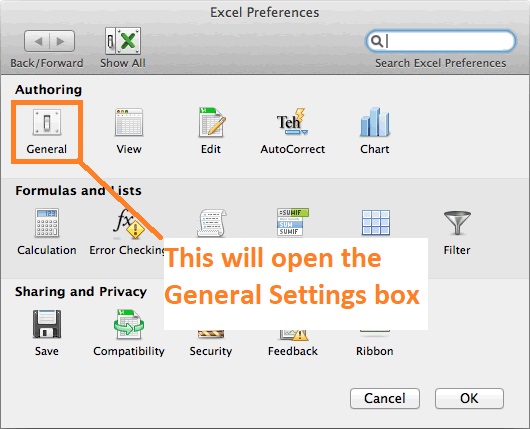
- In the General settings box, you can set the default font style and size. Use the drop-down menu after “Default font” to set the default font style. Use the drop-down button after “Font size” to set the default font size.

- After you set the font style and size to your liking, all you have to do is click OK to apply the changes. You will have to restart Excel to apply the changes. Now, every time you open a new Excel sheet, the default font will be the font that you set.
How to Set the Default Font in Excel by Creating a New Template
The other method to set the default font in Excel is to create a new Excel template.
This is a more advanced technique that requires time and effort.
Other than the default font, you can also set background colors, logos, formulae, and other settings for new Excel sheets and workbooks.
This is particularly useful if you have different document formats for your clients. By having a template, you don’t have to format the sheet every time you have to.
Just use the template!
Here are the steps to do so:
- Open a new blank Exel workbook. Put all of your preferred settings and options (e.g. font, font size, cell background color, cell borders, cell size, headings, etc.). You can also set margins or add images/logos.
- After formatting the workbook to your liking, the next step is to click the “File” tab. This opens the File Menu. Click “Save As”. Alternatively, rather than clicking the “File” tab, you can press the key F12 (the default “Save As” button).
- Set the File name according to your preference. For illustration, we will be using “Book1” as the file name.
- Now, we need to set the file type as an Excel template. To do so, use the drag-down menu after “Save as type” and select Excel Template.

- The next step is to save your new template in XLSTART folder (which contains Excel templates). The default address is Microsoft/Excel/XLSTART. Click the “Save” button to save your new Excel Template.
- Restart Excel. Open a new workbook and select. your new Excel template. The new workbook should have all the settings that you made on your template.
This concludes this article on how to set the default font in Excel.
Spotted an outdated link or a mistake? Email editors@fundsnetservices.com and we will review it.